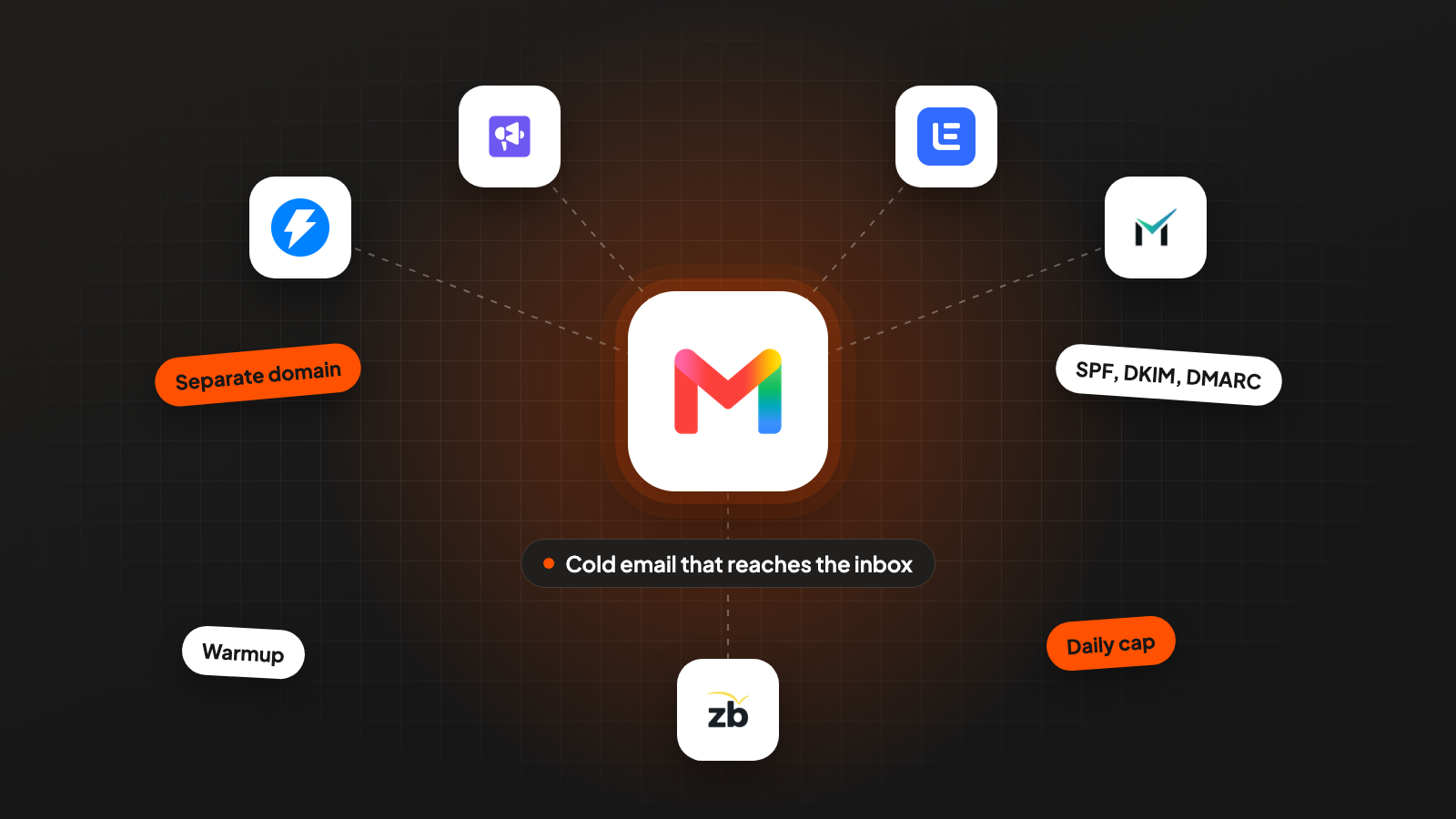
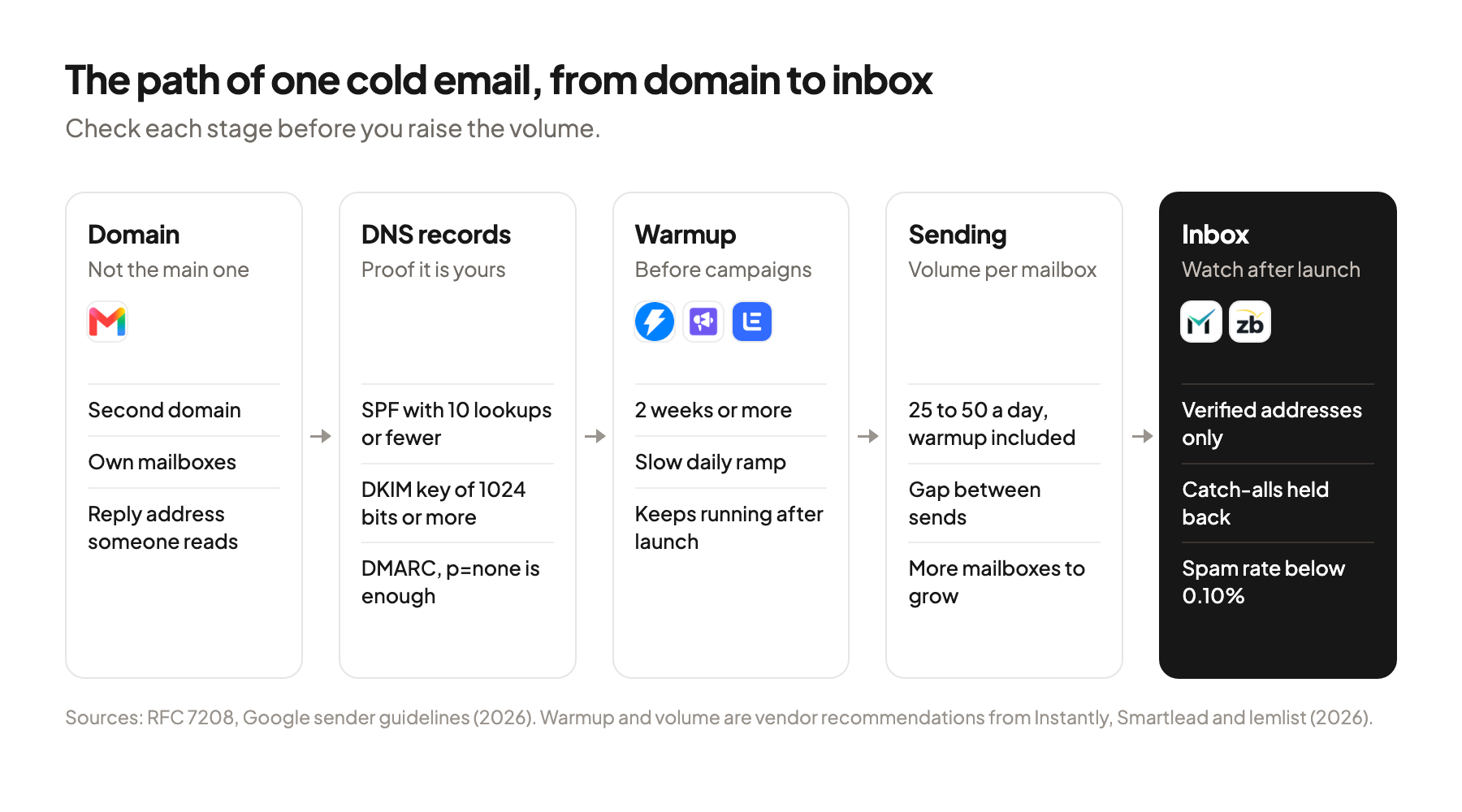
You have a list, a first email and a sending tool, and you’re about to start your first campaign. Much of the advice on how to send cold emails without going to spam comes as a list of tips from a tool vendor. This guide follows one email from the domain it leaves to the inbox it lands in, and shows what to check at each step, using the rules Google, Microsoft and Yahoo publish themselves.
Deliverability means the share of your emails that reach the inbox instead of the spam folder or a rejection. The parts you control are the domain you send from, the DNS records that prove an email is yours, the warmup of each mailbox, the daily volume, and the bounces and spam reports after launch. The email copy matters too, and it gets a short section at the end.
Key takeaways
- Send cold email from a separate domain. Google counts messages from the same primary domain together, and a domain that crosses its bulk threshold once is treated as a bulk sender permanently.
- Publish SPF, DKIM and DMARC before the first send. Microsoft now rejects mail from high-volume domains that fail its authentication checks, and Google has stepped up enforcement too.
- Warm up each new mailbox for at least two weeks and keep it at about 25 to 50 emails a day, warmup included. Those numbers come from Instantly, Smartlead and lemlist, since the mailbox providers publish none.
- Verify every address, keep catch-alls out of the main campaign and watch the spam rate. Google asks senders to stay below 0.10% reported spam and never reach 0.30%.
What decides whether a cold email reaches the inbox
The receiving mailbox provider decides, and Google, Microsoft and Yahoo each publish the rules they apply to senders. All three start from the same idea: the sender has to prove the email really comes from the domain in the From address.
Google’s rules have applied to everyone sending to Gmail accounts since February 1, 2024. Every sender needs SPF or DKIM, and senders with more than 5,000 messages a day to Gmail accounts need both plus DMARC (Google email sender guidelines, 2026). Google says it started ramping up enforcement on non-compliant mail in November 2025, including temporary and permanent rejections.
Here is how the three providers compare:
| Rule | Google (Gmail) | Yahoo | Microsoft (Outlook.com) |
|---|---|---|---|
| Who it covers | All senders, stricter above 5,000 messages a day to Gmail accounts | All senders, stricter for bulk senders (no threshold published) | Domains sending over 5,000 emails a day |
| Authentication | SPF or DKIM for everyone, both plus DMARC for bulk senders | SPF or DKIM for everyone, both plus DMARC for bulk senders | SPF and DKIM must pass, plus DMARC |
| Lowest DMARC policy | p=none | p=none | p=none |
| Spam and list hygiene | Spam rate below 0.10%, never 0.30% or higher | Spam rate below 0.3% | Remove invalid addresses regularly (recommended) |
| Unsubscribe | One-click for marketing and subscribed mail from bulk senders, handled within 48 hours | One-click for marketing and subscribed mail from bulk senders, handled within 2 days | Working unsubscribe link (recommended) |
One exception matters for B2B. Google’s FAQ says the sender guidelines “don’t apply to messages sent to Google Workspace accounts” (Google sender guidelines FAQ, 2026). The rules cover mail to personal Gmail accounts. I’d still treat them as the minimum, because a B2B list can contain personal Gmail addresses too, and one setup serves both.
Send from a separate domain with its own mailboxes
Keep cold email off the domain your company uses for customers, invoices and its website. Register a second domain close to your brand, such as getacme.com next to acme.com, and send every cold email from mailboxes on it.
Google counts mail by primary domain. Its FAQ defines a bulk sender as one that sends close to 5,000 messages or more to personal Gmail accounts, and messages from the same primary domain count together. A subdomain like mail.acme.com therefore adds to the same count as acme.com itself.
Bulk status doesn’t expire. The same FAQ says senders who meet the criteria “at least once are permanently considered bulk senders.” If cold campaigns ever push your main domain over that line, the stricter rules apply to every email your company sends from it. My own brand domain never sends cold email.
Point the new domain’s website to your main site, so a reader who types it in lands somewhere real. Then create the mailboxes. Google Workspace and Microsoft both host mailboxes, and sending tools like Instantly, Smartlead and lemlist connect to those mailboxes and send through them.
Give every mailbox a reply address that works. Microsoft recommends a From or Reply-To address that “can receive replies.” A reply is the result you’re after, so it has to land in an inbox someone reads every day.
Publish SPF, DKIM and DMARC before the first send
These three DNS records let the receiving server check that an email really comes from your domain. DNS (domain name system) holds the public settings of a domain, and you edit them at the company where you registered it.
| Record | What it does | What to check |
|---|---|---|
| SPF (Sender Policy Framework, RFC 7208) | Lists the servers your domain authorizes to send mail for it | At most 10 DNS lookups in total, or the check returns an error called permerror |
| DKIM (DomainKeys Identified Mail, RFC 6376) | Signs each email so your domain takes responsibility for it | Gmail asks for a key of 1024 bits or longer |
| DMARC (RFC 7489) | States your domain’s policy for mail that fails the checks, and ties SPF and DKIM to the From address | Google, Yahoo and Microsoft all accept p=none, a policy that sets no enforcement |
Count your SPF lookups. Every service that sends for your domain usually adds an include entry to the SPF record, a line that pulls in that service’s list of servers: the mailbox host, the sending tool, the CRM, the help desk. RFC 7208 caps the total at 10, and a record above that fails for every email. A separate sending domain helps here too, because it only carries the services that send cold email.
Then check alignment. Google requires that the domain in the From address match the domain SPF or DKIM checked. Under DMARC’s relaxed alignment a subdomain of the same organization counts as a match, and strict alignment needs the exact same domain name. Microsoft asks for alignment with SPF or DKIM, “preferably both.”
Microsoft now rejects mail that fails. Microsoft announced that, starting May 5, 2025, Outlook.com rejects messages from domains sending over 5,000 emails a day that don’t meet its authentication rules. The rejection carries the error code 550 5.7.515 and the words “Access denied” (Microsoft Defender blog, 2025). If that code ever shows up in a bounce report, look at these three records first.
Google also asks that sending servers use TLS, an encrypted connection, and have a PTR record, a reverse DNS entry that maps the server’s IP address back to a hostname. Both concern the server itself. In my view they only become your job if you run your own mail server.
Warm up each new mailbox for at least two weeks
A new mailbox has no sending history, so the sending tools recommend a warmup phase before the first campaign email. Warmup means the mailbox sends a small, slowly rising number of emails first. Instantly, Smartlead and lemlist each run a warmup feature, and lemlist’s is called lemwarm.
Here is what the three vendors recommend in their help centers (2026):
| Vendor | Before the first campaign | Ramp | Daily cap per mailbox |
|---|---|---|---|
| Instantly | At least 2 weeks of warmup, 3 weeks for its AirMail accounts, health score above 90% over the last 7 days | Not specified | 30 campaign emails a day |
| Smartlead | Follow the ramp | Days 1 to 7: 5 to 10 a day. Days 7 to 14: 10 to 20. Days 14 to 21: 30 to 50 | 40 to 50 in early stages, warmup included |
| lemlist (Google mailbox) | lemwarm at 10 a day | Start at 10 to 15 a day, add 5 per week | 25 to 30 campaign emails, at most 50 with warmup |
Read these as vendor advice. Google, Microsoft and Yahoo publish no daily number for cold email per mailbox. The three vendors still land close together: two weeks or more of warmup, then about 25 to 50 emails a day, warmup included (Instantly help center, 2026).
Keep warmup running after launch. Smartlead and lemlist both count warmup emails inside the daily cap, which only makes sense if warmup continues while the campaign runs. Plan your volume with that share already taken.
Start the warmup the day the mailboxes exist. Warmup is the one step that takes weeks however fast the rest goes. If your list and copy are ready in week one, the mailboxes still aren’t.
Cap daily volume per mailbox and spread the sends
Grow volume by adding mailboxes, and keep each one at the vendor cap. The caps in the table above apply per mailbox, so more volume means more mailboxes.
Say you want to send 600 emails a week, first emails and follow-ups together, on five weekdays. At 30 a day per mailbox, one mailbox sends 150 a week, so you need four. I’d spread them across at least two sending domains, so one domain with a problem doesn’t stop the whole campaign.
The provider limit is a ceiling. Google Workspace lets one user send 2,000 messages a day, 500 during a trial, counted over a rolling 24 hours. Going over blocks sending for up to 24 hours, while receiving keeps working. It’s a technical limit, far above the 25 to 50 a day the cold email tools recommend.
Spread the sends over the day. Smartlead recommends a gap of at least 10 to 15 minutes between emails from the same mailbox. Set the gap in your sending tool and let it run during the recipients’ business hours.
Count follow-ups inside the cap. Every follow-up is another email from the same mailbox. I’d plan the cap for the whole sequence, so the second and third steps don’t push a mailbox over its limit in week two.
Keep bounces and spam reports low after launch
After launch, two numbers show whether the setup holds: the bounce rate and the spam rate. In my view both depend more on the list and the email than on DNS.
Verify every address before it goes into the sending tool. A bounce is an email the receiving server returns because the address can’t receive it. Instantly’s benchmark page recommends keeping bounces “below 2% (ideally much lower).” An email verifier like MillionVerifier, ZeroBounce or NeverBounce sorts each address into a status before you send.
Treat catch-alls as unconfirmed. A catch-all is a mail server “set to accept all mail even if the email address doesn’t exist” (MillionVerifier help center, 2026). ZeroBounce says the result means “the individual mailbox remains unconfirmed.” NeverBounce gives a rule of thumb: with 10% invalid addresses in a list, up to 5% of the catch-alls may still bounce. MillionVerifier suggests using catch-alls only for real subscribers who signed up recently, and a cold list has none. I’d keep them out of the main campaign. The full set of list checks is in how to check a lead list before anyone sees a row.
Watch the spam rate. The spam rate is the share of your emails that recipients mark as spam. Google asks senders to keep it below 0.10% in Postmaster Tools, its dashboard for mail sent to Gmail users, and never to reach 0.30%. Bulk senders above 0.3% can’t get mitigation, Google’s help with delivery problems, until the rate stays below that for seven days in a row.
Say a mailbox sends 500 emails a day to Gmail users. One spam report a day is a rate of 0.20%, twice Google’s target.
Don’t plan around a reputation score. Google is moving everyone to Postmaster Tools v2 and will retire the Domain and IP Reputation dashboards. The new compliance dashboard shows whether you meet the sender guidelines.
If email isn’t the right channel for part of your list, cold email vs LinkedIn shows how to decide.
The reader decides what counts as spam. Google says it plainly: “Message recipients, not Google, determine the nature of the messages they receive.” Copy is outside this guide, but two things carry over. Write a first line that only fits this one reader, as in write the first line before you build the list. And offer something the reader can use, like the free list in the give-first cold email. A reader who wants an easy way out should find one in the email itself, so the spam button isn’t the only option.
Where this usually goes wrong
- Sending cold email from the main company domain. Use a separate domain, because Google counts the primary domain and bulk status stays for good.
- Adding every tool to one SPF record. Count the lookups and stay at 10 or fewer, or SPF fails for every email.
- Starting a campaign on a brand new mailbox. Warm it up for at least two weeks, as the sending tools recommend.
- Treating the Workspace limit as a target. Stay at the vendors’ 25 to 50 a day per mailbox, warmup included.
- Sending to unconfirmed catch-alls. Keep them out of the main campaign until a second check clears them.
Where to start
Look up the SPF, DKIM and DMARC records on the domain you plan to send from, today. If that domain is your main company domain, register a second one, set up its records and start the warmup now, because the warmup is the step you can’t speed up.
How to send cold emails without going to spam has a short answer: a setup you check once, and two numbers you watch every week. Domains, mailboxes and warmup are part of what we set up on your own accounts in the first 90 days. If you’d like to go through yours, book a 30-minute system check.
Pick your next step
Build it yourself
If you have the time to build and maintain it. The guide walks through every step.
Get the free target market map
If you haven't run outbound yet. Your market, its buying signals and who to contact first.
Book a system check
If you want it built in your own tools. 30 minutes on your market, outbound and sales capacity.
FAQ
How many cold emails can I send per day from one mailbox?
Google, Microsoft and Yahoo publish no such number for cold email. The sending tools recommend about 25 to 50 a day per mailbox with warmup included: Instantly suggests 30 campaign emails, Smartlead 40 to 50 in total early on and lemlist a cap of 25 to 30. To send more, add mailboxes.
How long should I warm up a new mailbox?
Instantly recommends at least two weeks, three for its AirMail accounts, and a health score above 90% before the first campaign. Smartlead’s ramp takes three weeks to reach 30 to 50 emails a day. I’d start the warmup the day the mailboxes exist.
Do Google's sender rules apply to cold email sent to business addresses?
Google says its sender guidelines don’t apply to messages sent to Google Workspace accounts. They cover mail to personal Gmail accounts. I’d still meet them, because a list can contain personal addresses and the same setup serves both.
Do I need DMARC if I send only a few emails a day?
Google and Yahoo require DMARC from bulk senders, and a policy of p=none is enough. Smaller senders need SPF or DKIM. DMARC takes one DNS record, so I’d publish it on every sending domain from the first day.
What is a catch-all email address?
It’s an address at a domain whose mail server accepts mail for any address, even ones that don’t exist. A verifier can’t confirm the mailbox behind it, so the result stays unconfirmed. I’d keep catch-alls out of the main campaign until a second check clears them.
Should I use a separate domain for cold email?
Yes, in my view. Google counts messages from the same primary domain together, and a domain that meets the bulk sender criteria once keeps that status permanently. A separate domain keeps that risk away from the domain your customers and invoices depend on.
Sources (18)
- Email sender guidelines, Google
- Email sender guidelines FAQ, Google
- Changes to Postmaster Tools, Google
- Gmail sending limits in Google Workspace, Google
- Sender best practices, Yahoo
- Outlook’s new requirements for high-volume senders, Microsoft
- RFC 7208: Sender Policy Framework, IETF
- RFC 6376: DomainKeys Identified Mail, IETF
- RFC 7489: DMARC, IETF
- Campaign options, Instantly
- When your email account is ready for campaigns, Instantly
- Cold email benchmark report 2026, Instantly
- Email account disconnection reasons, Smartlead
- Understand sending limits in lemlist, lemlist
- Catch-all emails, MillionVerifier
- What are catch-all domains, ZeroBounce
- Status codes, ZeroBounce
- What is a catch-all, NeverBounce