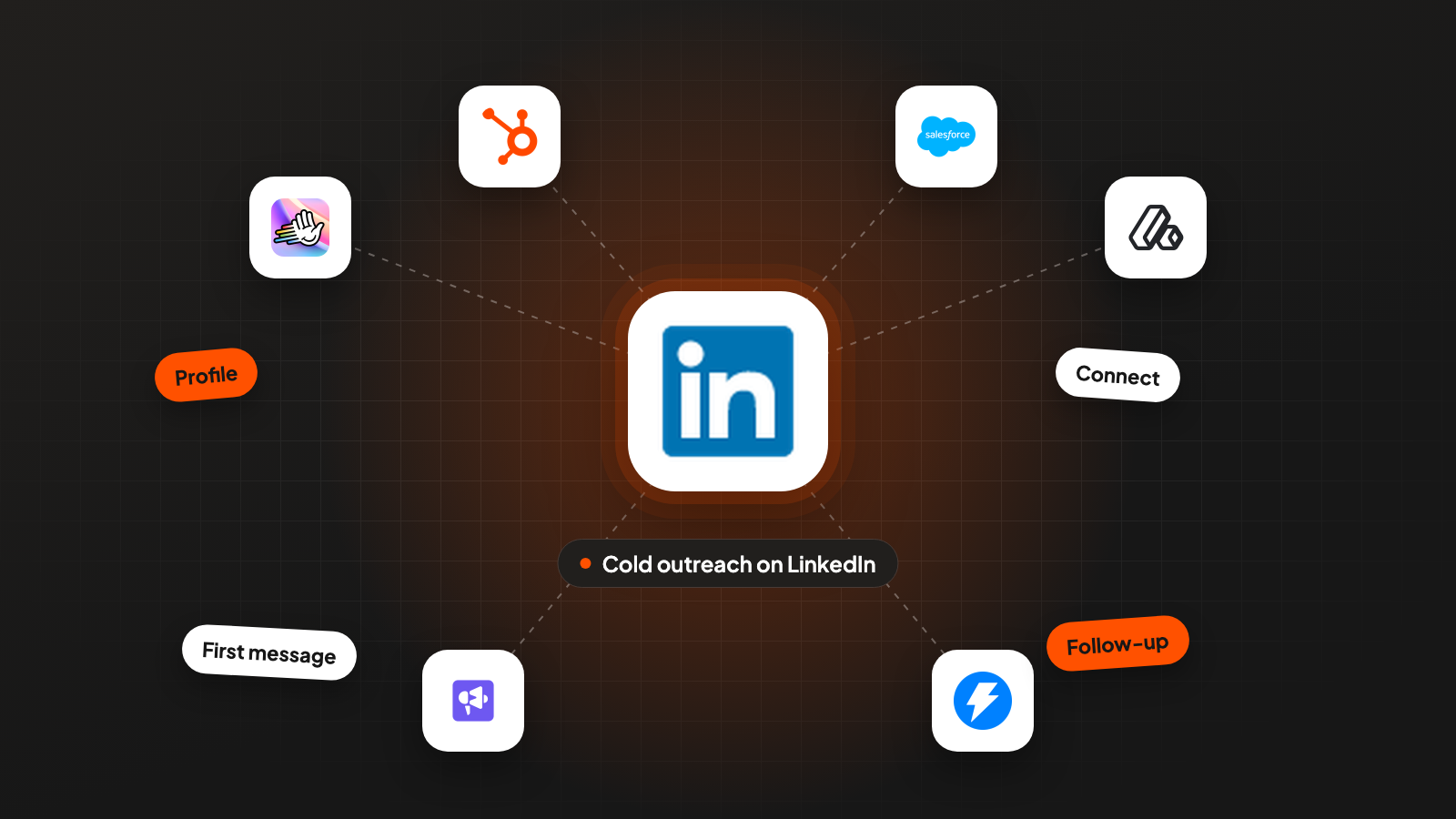
You have a list of US buyers, a LinkedIn account and a hunch that people answer there more often than they answer email. Search for how to cold outreach on LinkedIn and most of what comes back is written by companies that sell automation tools. This guide starts with LinkedIn’s own rules, quoted word for word, and then goes step by step: your profile, the connection request, the first message and the follow-up.
Cold outreach means contacting people who don’t know you yet. LinkedIn says it has more than 1.3 billion members and more than 290 million in North America, a figure that counts the US and Canada together. That reach is why the channel is worth a system, and the rules below are why the system has to stay small and careful.
Key takeaways
- LinkedIn’s User Agreement bans bots and other unauthorized automated methods for adding contacts or sending messages. Every automation tool carries the risk of a restricted or closed account, so decide on that risk before you pick a tool.
- LinkedIn publishes no weekly number for connection requests. The limits you read online are vendor claims, so start low and watch for the invitation restriction, which typically lasts one week.
- Free accounts can add a note to only a handful of connection requests per month. I send connection requests without a note and start the conversation once someone accepts.
- Write the first message about why you picked this person, ask for one small thing and follow up once or twice. Log every reply so the next list gets better.
What LinkedIn’s rules say about cold outreach
LinkedIn forbids software that adds contacts or sends messages for you, and it limits how many invitations anyone can send. The first rule sits in the User Agreement, effective November 3, 2025, section 8.2 (LinkedIn User Agreement, 2025).
Two “Don’ts” matter for outreach. The first bans tools that “scrape or copy the Services, including profiles and other data from the Services”. The second says you may not “use bots or other unauthorized automated methods to access the Services”, and it names adding contacts and sending messages as examples.
LinkedIn’s help page on prohibited software goes further. It says “we don’t permit the use of any third party software”, browser extensions included, that scrapes, automates activity or modifies how the site looks. On the consequences it is plain: “Any member who uses tools for such purposes is in violation of the User Agreement”, and “they risk having their accounts restricted or shut down” (LinkedIn Help, prohibited software, 2026). The same page warns that such tools can stop working without notice.
| Rule | Where it is | What it means for your outreach |
|---|---|---|
| No scraping of profiles and data | User Agreement 8.2 | Don’t copy profiles out of LinkedIn with a tool or extension |
| No bots for adding contacts or sending messages | User Agreement 8.2 | Connection requests and messages sent by software break the rule |
| No third party software that automates or modifies the site | Help page a1341387 | Extensions count too, and your account carries the risk |
| Invitation limits for every member | Help page a550555 | Basic and Premium accounts both hit the same kind of limit |
LinkedIn names no safe automation tool. Vendors publish their own “safe” limits, and LinkedIn’s rules leave room for none of them. Keep that in mind when you read the numbers in the next section.
How many connection requests you can send
LinkedIn doesn’t publish a number, and every number you read online comes from a tool vendor. What LinkedIn does say is why the limit exists and what happens when you hit it.
The purpose is in LinkedIn’s words. “Invitation limits are in place to prevent misuse and promote thoughtful networking.” If you send too many, “your account may be temporarily restricted from sending invitations.” The restriction “typically lasts one week”, LinkedIn can’t shorten it, and withdrawing pending invitations won’t remove it (LinkedIn Help, invitation limits, 2026).
Paying doesn’t lift the limit. “All LinkedIn members, including those with Basic and Premium accounts, are subject to these limits.” The same page recommends that you “only send invitations to people you know and trust”, which tells you how LinkedIn sees cold requests in the first place.
The tools that automate LinkedIn publish their own numbers. Treat them as vendor claims about their own product, and never as a LinkedIn rule:
| Vendor | What the vendor says | Type |
|---|---|---|
| HeyReach | Default of 25 connection requests per day, at most 30 for accounts with a high acceptance rate and over 1,000 connections, capped at 200 per week per sender | Help center, vendor claim |
| Expandi | Plan for about 15 to 20 requests per active day, at most 5 days a week, up to 100 per week for an established free account | Blog, vendor claim |
| Expandi | Warm-up starts at 5 actions per day and adds 3 every 2 days until 21 | Help center, vendor default |
| Dripify | A hard cap of 75 connection requests and 150 messages per day | FAQ, a technical cap and no safety advice |
HeyReach states the point openly: “LinkedIn does not publicly disclose its weekly Connection Request limit” (HeyReach help center, 2026). The weekly numbers in the table range from 100 to 200, and a restriction can still come earlier.
My rule for a new campaign is to start at the low end. Send a small batch by hand, look at how many people accept, and only then decide how much to send each week. A restricted account costs you a full week, and LinkedIn can’t give it back.
Set up your profile and your list before the first request
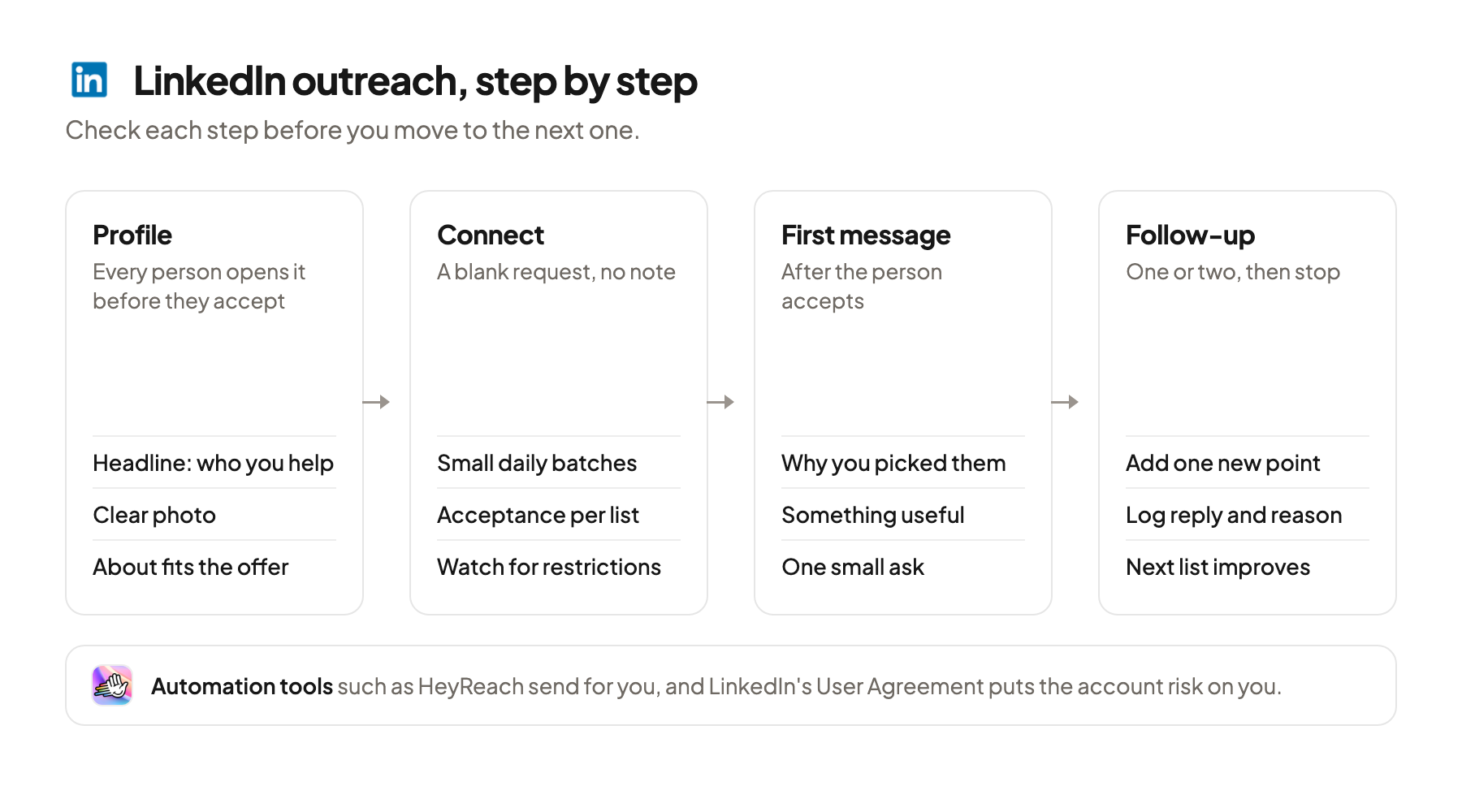
Every person you contact will open your profile before they accept, so fix it first. Then build a short list of people with a reason to hear from you now.
Your headline should say who you help and with what. “Founder at a software company” says less than “Invoice approval software for property managers in Arizona”. Add a clear photo, a short About section that matches your offer and a few recent posts. If you don’t post yet, turning a spreadsheet into a LinkedIn post series is a quick way to get a few weeks of posts done in one sitting.
Sales Navigator is LinkedIn’s own tool for building the list. LinkedIn describes its Advanced Lead Search as a way to find “the right people, faster, using 40+ filters”, and you can save a search to get notified when new people match (Sales Navigator guide, 2026). It also sends alerts when a saved lead changes jobs. Searching inside Sales Navigator by hand is normal use of the product.
Two of its filters work as signals, meaning a sign that someone may need your offer now:
- Changed jobs in last 90 days. A new VP of Sales or Head of Operations may review tools and vendors early in the role.
- Posted on LinkedIn in 30 days. People who post are active on LinkedIn, so your message has a better chance of being seen.
Job ads are another signal: a company hiring several account executives is building a sales team right now. That method has its own guide on turning job ads into a LinkedIn outreach campaign.
Check each profile before it goes on the list. Open it, confirm the person still works at the company, and note one detail you can use later: a recent post, a new role, an open position on their team. A short list you have looked at beats a long one you haven’t.
Send the connection request without a note
Send the request blank, without a note, and save your words for the first message after someone accepts. Free accounts can’t add a note to many requests anyway.
LinkedIn’s own help pages disagree on the note limit. One page says “Basic and free LinkedIn members can include a personalized message to five connection requests per month.” Another says “You can add a personalized message to up to three connection requests per month”, and “Each message can be up to 200 characters.” Premium members get “unlimited personalized invitations” (LinkedIn Help, 2026). On a free account, either way, you get a handful of notes per month.
I send connection requests without a note. The request then works as a quiet first contact: the person sees your name, your headline and your photo, and decides from your profile. That’s one more reason the profile work in the previous step comes first.
If you do write a note on Premium, keep it to one plain sentence about why you want to connect. A pitch inside the request asks for a decision before the person knows who you are.
Track acceptance per list from the first day. For a rough outside reference, Expandi’s 2026 benchmark reports “28.5% connection acceptance” and “10.4% message reply” as averages across its own platform from May 2025 to April 2026. Those are one vendor’s numbers from its own users, measured on the sender side. Your own numbers by list and by segment are the ones to act on.
Write the first message and the follow-up
Send the first message within a day or two of the acceptance, and make it about the person. Name the reason you picked them and ask for one small thing.
A good first message names the reason you reached out. Say you sell invoice approval software to property management companies, and a Director of Operations at a company in Arizona just accepted your request. She changed jobs this spring.
Thanks for connecting, {first name}.
Saw you started as Director of Operations in March. Congrats.
We help property managers in Arizona approve invoices faster.
I can put together a short checklist for invoice approvals
across several properties.
Want me to send it over?
Offer something before you ask for a call. A short list, a teardown or a sample is easy to say yes to. A meeting request from a stranger is hard to say yes to. Build the asset after the person says yes, so you only spend time on people who asked for it.
One or two follow-ups are enough. Wait several days, then add one new piece of information or a shorter version of the offer. If there’s still no answer after the second follow-up, stop and move on. A third and fourth message to someone who never answered reads as pressure.
InMail is the option for people who won’t accept. InMail is LinkedIn’s paid message to someone you’re not connected to. Credits per month are 5 on Premium Career, 15 on Premium Business and 50 on Sales Navigator Core. An InMail that gets accepted, declined or answered within 90 days of sending is credited back, and an unanswered one is not (LinkedIn Help, InMail credits, 2026). That rewards short, specific InMails that people at least decline.
Log every reply where your team can see it. A “not now”, a “wrong person” or a question about price tells you something about the list and the message. Put the reply, the reason and the next step into your CRM, whether that’s HubSpot, Salesforce, Attio or a shared sheet.
Your replies are training data. Stop treating them as endings.
 Jan BerningFounder, Pipecadence
Decide how much to automate
You can run LinkedIn outreach by hand, with Sales Navigator for the list, or with an automation tool that sends for you. The difference is how much of the sending happens in software, and that’s where LinkedIn’s rules apply.
| Option | What it does | What to watch |
|---|---|---|
| By hand on LinkedIn | You send requests and messages yourself | Time per day, and the invitation restriction still applies |
| Sales Navigator | LinkedIn’s own product: search with filters, saved searches, job change alerts, InMail credits | Sending stays manual, which keeps it inside the rules |
| HeyReach | Automated requests and messages, with a daily default and a weekly cap per sender | Automation under User Agreement 8.2, so the account risk is yours |
| Expandi or Dripify | Automated requests and messages, with a warm-up default at Expandi and hard daily caps at Dripify | Same rule and same risk, and the caps are vendor numbers |
Automation tools save the hours of clicking through requests by hand. HeyReach, Expandi and Dripify each publish daily limits for their own product. None of that changes LinkedIn’s position: tools that automate activity break the User Agreement, and accounts that use them risk restriction or shutdown. If the account is a founder’s personal profile with years of contacts, that’s a lot to put at risk.
A middle path is to automate around LinkedIn and send by hand. Build and check the list in a spreadsheet, draft messages in advance, keep a daily sending block on your calendar, and track acceptance and replies in your CRM. The sending itself stays a person clicking a button.
In my setup, LinkedIn runs as one channel of two. At Pipecadence, cold email comes first and LinkedIn is the second channel, so a person who doesn’t answer one may answer the other. How to split a list between the two is in cold email vs LinkedIn. Your cold email tool, for example Instantly or Smartlead, then sends to the same list with its own sequence.
Where this usually goes wrong
- Treating a vendor’s “safe limit” as LinkedIn’s rule. LinkedIn publishes no weekly number, so start low and watch for the restriction.
- Sending requests before the profile is ready. Fix the headline, photo and About section first, because every person checks them before accepting.
- Pitching a call in the first message. Offer something useful and build it after the person says yes.
- Following up four or five times. Stop after the second follow-up and move to the next person.
- Leaving replies in the LinkedIn inbox. Log each reply and its reason in the CRM so the next list improves.
Where to start
Pick 40 people from one segment, check each profile by hand and fix your own profile before you send anything. Send blank requests in small daily batches for two weeks and write down how many accept.
Learning how to cold outreach on LinkedIn comes down to a good profile, a short checked list, blank requests, a first message about the person and the patience to stay inside LinkedIn’s rules. If you’d like LinkedIn set up as a second channel next to cold email in your own tools, book a 30-minute system check.
Pick your next step
Build it yourself
If you have the time to build and maintain it. The guide walks through every step.
Get the free target market map
If you haven't run outbound yet. Your market, its buying signals and who to contact first.
Book a system check
If you want it built in your own tools. 30 minutes on your market, outbound and sales capacity.
FAQ
Is LinkedIn automation allowed?
No. LinkedIn’s User Agreement bans bots and other unauthorized automated methods for adding contacts or sending messages, and its help page says members who use such tools risk having their accounts restricted or shut down. Vendors publish limits for their tools, but LinkedIn approves none of them.
How many connection requests can I send per week on LinkedIn?
LinkedIn doesn’t publish a number. It says invitation limits exist to prevent misuse, apply to Basic and Premium accounts, and that a restriction typically lasts one week. The weekly numbers you see online come from tool vendors, and they differ from vendor to vendor.
Should I add a note to a LinkedIn connection request?
I send connection requests without a note and start the conversation once someone accepts. Free accounts can only add a note to a handful of requests per month, with LinkedIn’s help pages naming either three or five. Premium accounts can personalize every request.
Do I need Sales Navigator for LinkedIn outreach?
You can start without it. Sales Navigator helps with the list: it offers more than 40 filters, saved searches with alerts and filters like recent job changes. The sending works the same either way, so buy it when list building becomes the slow part.
What happens to InMail credits if nobody answers?
An InMail that is accepted, declined or answered within 90 days is credited back. One that gets no response at all is not. Short, specific InMails therefore cost you less over time.
Should a founder start with LinkedIn or cold email?
Both work, and each reaches people the other misses. In our setup, cold email comes first and LinkedIn runs as the second channel to the same list. If your buyers live on LinkedIn and your volume is small, starting there by hand is a fair choice.
Sources (13)
- User Agreement, LinkedIn
- Prohibited software and extensions, LinkedIn Help
- Invitation limits, LinkedIn Help
- Personalize invitations, LinkedIn Help
- InMail message credits and renewal process, LinkedIn Help
- How to use LinkedIn Sales Navigator, LinkedIn
- Sales Navigator filter definitions, LinkedIn Help
- About LinkedIn, LinkedIn
- How do connection request limits work in HeyReach, HeyReach
- LinkedIn connections limit, Expandi
- Account warm-up, Expandi
- FAQ, Dripify
- LinkedIn outreach benchmarks 2026, Expandi